 Flashiibo
4: Uploading and Importing FCA Files
Flashiibo Pro / Visual Tutorials / Uploading & Importing
This guide explains how to upload and unpack a Flashiibo Compressed Archive (.fca) directly onto your Flashiibo device.
In this tutorial, we use the popular 425-no-ac.fca archive as our example. This curated collection includes 425 amiibo characters (The Legend of Zelda, Super Smash Bros, Super Mario, Splatoon, Metroid, Fire Emblem, Monster Hunter, and more), neatly organized into series folders.
[!NOTE] For the complete documentation, direct package downloads (Animal Crossing, Core, Kirby), and troubleshooting, see the full Import FCA Files Guide.
Prerequisites
- A Flashiibo device powered on with at least 500 KB of free storage.
- The
425-no-ac.fcaarchive file downloaded on your computer or phone (available from the Import FCA Files guide). - Access to our wireless tools:
- Flashiibo Web App: Visit app.flashiibo.com in Google Chrome, Microsoft Edge, or any Web Bluetooth browser.
- Flashiibo Pro Tools App: Available for iOS, Android, or Windows 10/11.
Step 1: Start at the Home Screen
Turn on your Flashiibo or long press BACK to make sure you are at the main screen:
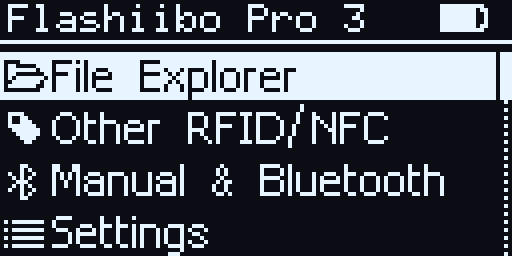
- Use the UP and DOWN buttons to scroll through the app list.
- Highlight File Explorer.
- Press the OK button to enter.
Step 2: Upload and Locate the .fca File
Connect to your device wirelessly using the Flashiibo companion app or web tool, and upload 425-no-ac.fca to the device.
Once transferred, navigate to the main directory / in the File Explorer:
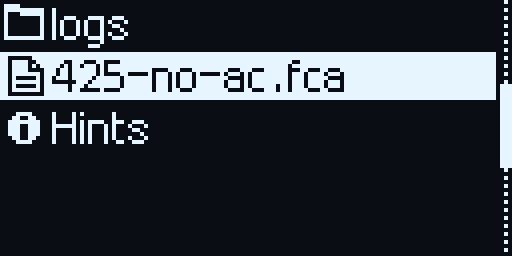
- Use the DOWN button until
425-no-ac.fcais highlighted. - Press the OK button to open the options.
- Select Import / Unpack.
Step 3: Archive Extraction & Unpacking
The device automatically unpacks the archive, extracting each character into the /_all folder:
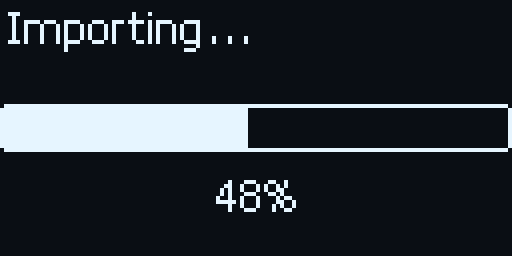
- A real-time progress bar shows the current file being unpacked.
- The entire process for 425 amiibo takes only about 10 to 15 seconds.
- Do not turn off the device while the progress bar is running.
Step 4: Import Confirmation
When extraction finishes, Flashiibo displays a confirmation dialog:
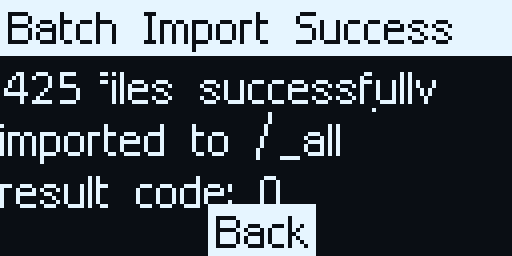
- The dialog confirms that all 425 files were imported into
/_all. - Press the OK button to dismiss the dialog (recommended), or press BACK to return.
Step 5: Verify the Unpacked Folder
Return to the File Explorer root directory. You will see that the _all folder is ready:
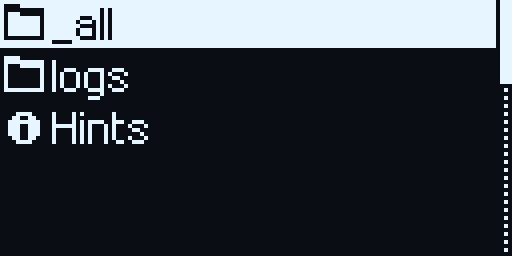
- Scroll to
_allusing UP / DOWN and press the OK button to open it. - You can now safely delete the original
425-no-ac.fcafile (long-press OK to open options, then select Delete File) to free up storage space.
Step 6: Browse Your Franchise Series
Inside /_all, characters are organized into clean game categories:
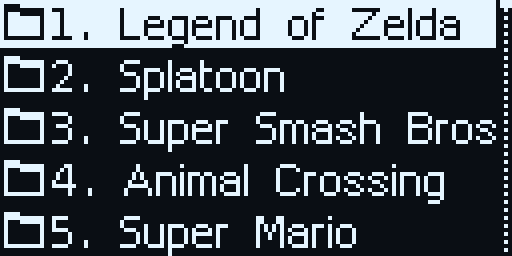
1. Legend of Zelda2. Splatoon3. Super Smash BrosSuper MarioMetroid,Fire Emblem,Monster Hunter, and more!
Scroll into any folder and select an amiibo to immediately start scanning!
Tips
[!TIP] Why
425-no-acinstead of the 800+ full collection?
The complete collection includes over 400 Animal Crossing cards. If you mostly play Nintendo Switch adventure and action games (Zelda, Smash Bros, Splatoon, Mario Kart), the425-no-acpackage keeps folder browsing fast and saves storage space. To download other archives (Animal Crossing, Core, Kirby), visit the Import FCA Files guide.
[!NOTE] If an import stops midway or displays an error, verify that your device has sufficient free storage by checking Settings > Storage Info, or refer to troubleshooting in the full Import FCA Files guide.
| ← Previous: 3 - Daily Scan Restrictions | Visual Tutorials Hub | Next: 5 - Adding Files to Favorites → |