 Flashiibo
6: Customizing the Home Screen
Flashiibo Pro / Visual Tutorials / Customizing Home Screen
Flashiibo includes several built-in apps and operating modes:
- File Explorer: Browse folders and select amiibos to scan.
- Other RFID/NFC: Multi-tag RFID & NFC card emulation.
- Manual & Bluetooth: Wireless file transfers and companion app connection.
- Settings: System preferences, screen brightness, and tools.
- NTAG215 Slots: 100-slot emulation mode for mobile companion apps.
If you primarily use Flashiibo for Nintendo Switch amiibo gaming and prefer a clean, minimal menu, you can easily show or hide specific apps using Home Config.
Step 1: Open Home Config in Settings
From the main screen, scroll to and select the Settings app:
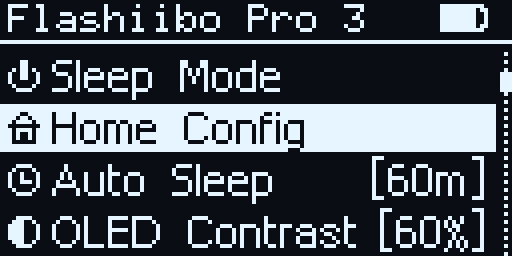
- Use the DOWN button to highlight Home Config.
- Press the OK button to enter the menu.
Step 2: Review Currently Enabled Apps
The Home Config menu lists all optional apps that can appear on your home screen:
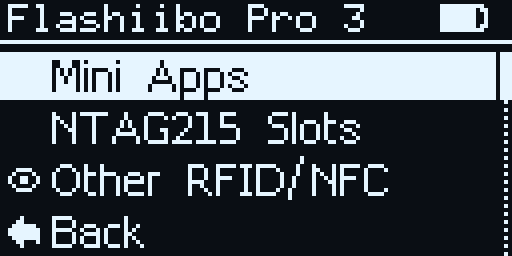
- Each app displays an eye icon
[O]showing that it is currently visible on the home screen. - By default, apps like Other RFID/NFC and NTAG215 Slots are visible.
Step 3: Toggle Apps On or Off
To hide an app you don’t use:
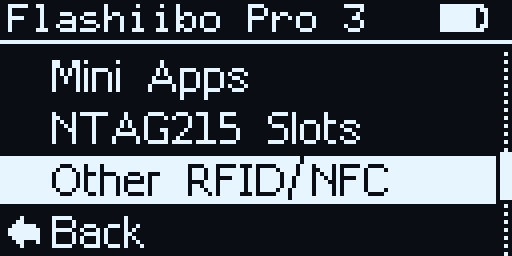
- Use the UP and DOWN buttons to highlight the app you want to hide (e.g.,
Other RFID/NFC). - Press the OK button to toggle its visibility.
- The eye icon changes to empty brackets
[ ], indicating the app is now hidden from the home screen. - Your settings are saved immediately.
Step 4: Enjoy Your Clean Home Screen
Long press BACK to return to the home screen:
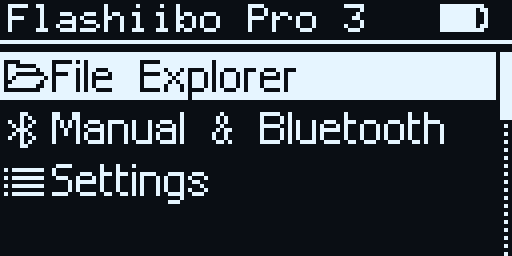
- The hidden app is now removed from your main menu.
- You can now scroll directly between your primary apps without extra clutter!
Restoring Hidden Apps
[!NOTE] The Settings app itself can never be hidden from the home screen. If you ever want to re-enable a hidden app in the future, simply return to Settings > Home Config and toggle the eye icon back on.
| ← Previous: 5 - Adding Files to Favorites | Visual Tutorials Hub |